


Guides · Start here
Controls and settings
Gleamheart plays on a computer, a phone, a tablet or with a gamepad, and you can change almost every control. This page lists them all, then walks you through the settings that matter most when you start. Read the parts for your device and skip the rest.
On a computer
Click the game to capture the mouse. Now moving the mouse turns your view. Press Esc to let the mouse go and open the pause menu.
Your mouse does the most work. Hold the left button to break a block, or click it to hit. Click the right button to place a block, open a chest or table, or use what you hold, and hold it to eat. Roll the scroll wheel, or press 1 to 8, to pick what is in your hand.
Every key
Here is every action the game has, with the keys it starts with. That is 48 actions, so look for the ones you need now and come back for the rest. A few have no key at first, because every key near your hand is already busy. You can give them one.
| Key | What it does |
|---|---|
| Left click | Hold to break a block, click to hit. This one can't be changed. |
| Right click | Place the block in your hand, open tables and chests, and use items. Hold it to eat. This one can't be changed. |
| 1 to 8, or the scroll wheel | Pick the item in your hand from your satchel. These can't be changed. |
| Esc | Open the pause menu, or close a menu. This one can't be changed. |
| W or ↑ | Walk forward. |
| S or ↓ | Walk backward. |
| A or ← | Step to the left. |
| D or → | Step to the right. |
| Space | Jump. Hold it to swim up. In creative, press it twice quickly to fly. |
| R or Ctrl | Run while you hold it. You can't run when you are very hungry. |
| Shift or R Shift | Sneak: move slowly without walking off edges. It also gets you out of boats and carts, and lets you place a block on a chest instead of opening it. |
| E | Open your bag and crafting. Press it again to close. |
| The key left of 1 | Swap what you hold with your off hand. |
| Q | Drop one item from your hand. Hold Ctrl too to drop the whole stack. |
| T or Enter | Open chat, to talk to other players. |
| / | Open chat with a slash ready, for commands. Type /help to list them. |
| V or F5 | Switch the camera: your own eyes, behind you, then in front of you. |
| G | Give orders to your tamed Wrights: follow, guard or collect. |
| J | Open the Journal: your Path, achievements, Torn Pages and the story so far. |
| F | Open Friends. Aim at a player first and it sends them a friend request instead. |
| M | Open the map, when you carry a Wayfarer's Atlas. |
| . | Throw a fireball where you aim, while you wear the Fire Chestplate. |
| F3 | Show or hide the info panel: frame rate, position, biome and more. |
| Y | Say yes to a friend's invite, or to a player who asks to teleport to you. |
| N | Say no to an invite or a teleport request. |
| C | With a staff in hand, switch to your next ready spell. |
| B | Open your spell book, to choose the spells your staff casts. |
| O | Open Settings, from the pause menu. |
| L | Leave the world, from the pause menu. |
| X | On the death screen, respawn where you died, when the screen offers it. |
| Z | Put every bag stack into the chests within 6 blocks that already hold that item. Your satchel stays as it is. |
| K | Hide the First steps card. The Journal's Path brings it back. |
| P | Take a picture of what you see, with no HUD, ready to share. |
| U | Hold to zoom in. Looking around slows down to match. |
| F1 | Hide everything over the world for a clean view. Press it again to bring it back. |
| I | Open or shut the Builder's Lens, when you can use it. |
| = or NumLock | Walk forward by yourself until you press it again, or move forward or back. |
| , | Mark the block or creature you aim at, up to 64 blocks away, so your team and friends see it for 20 seconds. |
| F2 | Photo mode: the camera floats free so you can frame a picture. |
| 9 | Open the emote wheel. Hold it, aim and let go, or tap it, aim and click. |
| None at first | While held, raise the shield in your off hand. Right click does it too when your hand is empty. |
| None at first | While held, strike with the blade in your off hand. Right click does it too when your hand is empty. |
| 0 | With a Shard in your off hand and a sword in your hand, make the Shard's move. |
| Alt | Roll about 4 blocks the way you are moving, or hop back if you stand still. Blows can't land on you early in the roll. |
| None at first | Throw the dagger in your hand where you look. Pick it up again where it lands. |
| Tab or Middle click | Near a boss, lock on to it. Your blows, arrows and spells go to its marked weak point. Press again for the next weak point. |
| None at first | With the Thrum Lens in hand, play the lesson of the machine piece you aim at. Sneak and use does the same. |
| Shift+1 | Use the ability in slot 1 of your ability bar. |
| Shift+2 | Use the ability in slot 2 of your ability bar. |
| Shift+3 | Use the ability in slot 3 of your ability bar. |
| Shift+4 | Use the ability in slot 4, once you have earned that slot. |
| Shift+5 | Use the ability in slot 5, once you have earned that slot. |
Changing a key
Open Settings, then Controls, and scroll to the keys. Click a key, then press the new one. Each action can have two keys. Esc cancels and Delete clears. Esc and 1 to 8 always stay as they are.
If you give an action a key that another action already uses, the game moves it and tells you which action lost it. A red mark means two actions share a key. The arrow beside a row puts that action back the way it started, and there is a search box to find an action by name.
Emotes
Say it without words. On a keyboard, hold 9, aim at an emote on the wheel and let go. On a touch screen, the wheel button opens them by your right thumb: slide to one and let go. These are yours from the start: Salute, Bow, Wave, Point, Kneel, Sit, Cheer, and War cry. You earn 3 more by beating the great bosses. Settings, Controls, Wheel picks the fan by your thumb or a round wheel in the middle, and Settings, HUD can hide other players' emotes.
Inventory shortcuts
- Click picks up or puts down a stack. Right click takes half, or puts down one.
- Shift+click moves a stack between bag and satchel, into or out of a chest, ore and fuel into a Forge, and armor onto your body.
- Double click a stack to gather every matching item into your hand. Shift+double-click moves every stack of its kind.
- Scroll over a stack to move one item across, and Alt+click locks a slot. See your bag and chests.
- Drag a held stack across slots: the left button shares it out evenly, and the right button puts one in each.
- Press a number key over a slot to swap it with that satchel socket, or the off-hand key to swap it with your off hand.
- Sort buttons tidy the bag (the satchel stays as it is) and an open chest. Stow, beside Sort, puts every bag stack the chest already holds into it.
- A satchel stack that runs out restocks from your bag. In the recipe book, the Make buttons craft straight into the bag, and each item’s card shows what it goes into and where to find it.
Chat commands
Press / or T to chat, and type /help to see the commands you can use where you are. Every command, with an example and who can use it, is in Chat commands. In chat, the up and down arrows bring back earlier messages, and Tab finishes commands, their options and player names for you.
On a phone or tablet
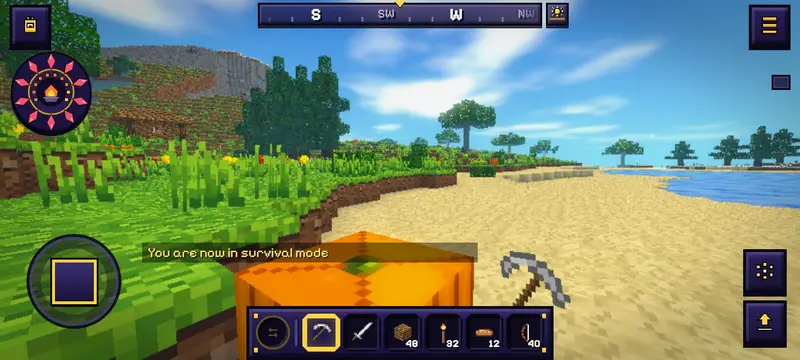
Turn your phone sideways: Gleamheart plays in landscape. Your left thumb walks and your right thumb does everything else.
- Move: the joystick at the bottom left. Push it to its edge to run, or push forward twice quickly.
- Look around: drag anywhere else on the screen.
- Use or place: tap where you want it. Mine or attack: press and hold, and a ring fills under your finger.
- Jump: the big button at the bottom right. Sneak shows beside it when it matters, like at the edge of a drop.
- The wheel: the button above Jump. It holds chat, the camera view, zoom, marks, sharing a moment, hiding the HUD, sneaking and your emotes.
- What you hold gets its own button: Draw for a bow, Cast for a staff or a fishing rod, Place for a block, and Block for a shield in your off hand.
- Lock on: near a boss, a lock button shows above Dodge. Tap it to lock on, again for the next weak point, and once more to let go.
- The bag is at the top left. The menu button is at the top right.
- Drop: hold a satchel slot until its ring fills, then slide up and let go. A short slide drops one, a long one drops the stack. Letting go without sliding drops nothing.
Making touch fit your hands
Everyone holds a phone a little differently, so the touch controls bend to you. Find these in Settings, then Controls:
- Move with: pick Joystick or D-pad. On the D-pad, slide your thumb between arrows to turn, tap up twice and hold to run, and tap the middle twice to sneak.
- Joystick: Fixed keeps the stick in its corner. Floating puts it wherever your thumb lands on the left half of the screen.
- Push to run: push the stick past its ring to run. Hold it there a moment and running locks on, lit gold, until you touch the stick again.
- Left-handed: the stick moves to the right, and Jump and the buttons to the left.
- Arrange controls: drag any button to a new place and tap it to resize it. Portrait and landscape keep their own layouts.
- Button size (in the Comfort tab), Touch control opacity and Dead zone set how big, how solid and how touchy the controls are.
- Touch look speed: how far the view turns when you drag a finger. Lower it for finer aim.
With a gamepad
Plug in a gamepad and play with it straight away. The left stick walks and the right stick looks around. The game knows 17 gamepad actions, and starts them on these buttons:
| Button | What it does |
|---|---|
| A | Jump |
| B | Sneak |
| L3 | Run |
| RT | Mine or attack |
| LT | Place or use |
| X | Open your bag |
| LB | Satchel slot to the left |
| RB | Satchel slot to the right |
| Y | Mark what you aim at |
| Down | Drop the item in your hand |
| R3 | Switch the camera view |
| Up | Open the map |
| Left | Photo mode |
| Right | Share a moment |
| View | Open the Journal |
| Menu | Open the pause menu |
| R3, while a boss is near | Lock on to a boss |
To change a button, open Settings, then Controls. Press Change beside an action, then press the new button on your pad.
The HUD
The HUD is everything drawn over the world while you play. Here is how to read it:
- The medallion (bottom left; top left on a phone): your life is the ring of Crystal shards around it, two life to a shard, with Live Hearts rimmed in gold. Your food is the ember bowl in its middle and the embers around it, two food to an ember. Armor shows on the gold shield under it, a Sunapple's ward as a gold halo around it, and your Ether as the arc on its side once you know a spell. When your life runs low, it throbs red: time to back off and eat.
- The satchel (bottom right; along the bottom on a phone): the round socket holds what is in your off hand (tap it, or press the key left of 1, to swap it with what you hold), then sockets 1 to 8, one for each key.
- Breath: under water, a ring of bubbles circles the crosshair (the middle of the screen on a phone) and pop as your air runs out.
- Hide the HUD: F1, or the crossed-out eye on a phone. The medallion, the satchel, the compass, chat and your hand all go. Press it again to bring them back.
- Zoom: hold U, or the Zoom button on a phone. The view narrows to a third, and looking around slows to match. Wearing Gloomseer Lenses, it narrows even further.
The settings worth knowing
Open Settings from the title screen (top right) or from the pause menu. On a computer, O opens it from the pause menu. Point at a setting, or tap its name on a phone, and a line under the list tells you what it does. Your browser remembers everything you choose.
The settings sit in tabs: Video, Controls, HUD, Sound, Comfort, Gameplay, Chat and Language. Where you can sign in, there is an Account tab too. Here are the ones a new player most often wants.
Graphics and Recommended
The first time the game opens, it runs a short test and picks graphics that suit your device. That choice is called Recommended. Change anything and it says Custom instead, so you always know whether you are on the game's pick or your own.
Under Graphics sits a row for each of 37 details, like clouds, glows and swaying plants. A detail that may be too much for your device says May run slowly. Changed too much? Reset to recommended puts every detail back. The other rows on the Video tab:
- View distance: how much of the world is drawn around you, in chunks of 16 blocks. Lower it if the game stutters or your phone gets warm.
- Render scale: below full size, the world is drawn with fewer pixels and stretched to fit. It looks softer but runs faster. Menus and text stay sharp.
- Far land: the hills and mountains beyond the loaded land, drawn cheaply out to the horizon. Turn it off if the game stutters.
- Steady 30 when struggling: when your device can't keep up, the game draws a steady, slower frame rate instead of a jumpy one, and speeds back up when it can.
- Battery saver (phones and tablets): one switch for a long session. It sets Low graphics, a view of 4 chunks and a slower frame rate. Turn it off and your own settings come back.
- Menu rest: while the game is paused or a big menu is open, it draws fewer frames. That saves power and keeps phones cooler.
If the game runs slowly
- Lower View distance first. It makes the biggest difference.
- Press Reset to recommended if you changed things, then turn down any detail marked May run slowly.
- Lower Render scale. The world gets a little softer and a lot quicker.
- Close other browser tabs. Gleamheart needs WebGL, which Chrome, Edge, Firefox and Safari all have.
Sound
The Sound tab has a Master slider for every sound, and one each for music, effects (blocks, footsteps and creatures) and ambience (wind, water and rain). Mute silences everything at once and keeps your levels for when you turn it off. Captions put a short line at the side of the screen for each sound you hear, with an arrow toward it, so you can hear a creature sneaking up even with the sound off.
Comfort and accessibility
If something makes the game hard to play, there is probably a setting for it. Most of these live in the Comfort tab:
- Reduced motion: no zoom when you run, no dip when you land, no hand sway, smaller wobbles and calmer menus. It also turns off View bob, the gentle rock of the view as you walk.
- Color-blind safe colors: the colors that mean good and bad, like ready recipes and poison, change to pairs that stay apart with red-green or blue-yellow color blindness.
- Captions (Sound tab) show every sound as words. Subtitle size sets how big the words in the opening scene are.
- UI scale: makes the satchel, chat, the bag and the menus bigger or smaller, from 80% to 140%.
- Toggle run and Toggle sneak (Controls tab): press once to start and once to stop, so you don't have to hold a key down.
- Invert look: moving up looks down, like a flight stick. Mouse sensitivity and Raw mouse input tune how the view turns on a computer.
- Auto-jump hops you up one-block steps by itself. Hold to repeat, on touch screens, keeps placing blocks while you hold.
Helpful extras
These are on when you start, and each one quietly saves you time. If one gets in your way, turn it off.
- Keen Eye (HUD tab): one line at the top tells you what you are looking at and which tool mines it.
- Torchsight (HUD tab): with a torch in hand, ground dark enough for creatures to rise on is marked. Put a torch there and they can't.
- Danger hints and Threat edge (HUD tab): a line warns you when your air or health runs low, and a red edge shows a creature coming at you from where you can't see.
- Placement ghost (HUD tab): a faint outline shows where the block in your hand will go.
- Felling, Restock and Ready hand (Gameplay tab): chop the bottom log and the whole tree falls, an empty stack refills from your bag, and the right tool jumps to your hand when you start to mine.
- Take back (Gameplay tab): break a block you placed in the last 5 seconds and it pops straight back into your bag. Oops, fixed.
- Drop guard (Gameplay tab): dropping a tool, weapon or armor takes a second press, so a stray key never throws your best sword into a lava pool.
Settings, tab by tab
Looking for one setting and not sure where it lives? Here is what every tab holds.
| Tab | What it holds |
|---|---|
| Video | Graphics: Recommended (set for this device the first time the game opens) or Custom, with Reset to recommended. Then the render scale and a row for each of its 37 details, such as Sky gradient, Clouds and fine stars, and Torch and lava glow. A detail that may be too much for this device says May run slowly. After that: view distance (in chunks), Far land (the hills beyond the loaded land, drawn cheaply to the horizon), field of view, Ripe glint, a torch in hand, boss cinematics, Steady 30 when struggling (a steady, lower frame rate when this device can't keep up), menu rest and a frame counter. On a phone: full screen and the battery saver. |
| Controls | Mouse sensitivity, invert look, auto-jump, toggle run and sneak, raw mouse input, shoulder view, lock-on (on or off, Toggle or Hold, turn speed, camera pull-back), and every key, with a search box. With a gamepad, each action's button. On a phone: touch look speed, joystick or D-pad, left-handed, the wheel, Arrange controls, control size and opacity, Hold to repeat and vibration. |
| HUD | Coordinates, the compass strip and its marks, the sun dial, Keen Eye, the Path, the world panel, damage numbers, danger hints, land names, the threat edge, the feast line, gear glance, the placement ghost, Torchsight, creature health, other players' emotes and the minimap |
| Sound | Master, Music, Effects and Ambience volumes, Mute, and Captions |
| Comfort | Reduced motion, view bob, color-blind safe colors, button size, subtitle size and UI scale |
| Gameplay | Kinholds only (see below). Then Restock, Felling, Quake mining (a Quaking tool breaks the blocks round the one you mine; sneak to mine one), Replant (and reap and sow), Take back (a block you placed in the last 5 seconds breaks at once and comes back), Long reach, Ready hand (the right tool comes to hand when you mine), Vein sense (sneak while mining an ore to follow its vein) and Drop guard (dropping a tool, weapon or armor takes a second press). |
| Chat | Text size, how long lines stay, timestamps, faces, hide chat, show typing, and the players you have muted. Tap a name to unmute it. |
| Language | US or UK English for the game's words |
| Account | Shown where you can sign in: sign in, or once you have, notifications and sign out |
For grown-ups: Kinholds only
Kinholds only, in the Gameplay tab, keeps this browser to your own worlds: no online worlds, no chat with strangers and no friends list. A grown-up picks a code to turn it on, and only the same code turns it off. Hide chat, in the Chat tab, takes chat off the screen while you play.
Every command you can type in chat is on the commands page. How to start a world and get through the first night is in Your first day.
Your next step: Your worlds. All sections: the guides.